 Patent Task
01 / Patent drawings
AI patent drawing generator
Prepare draft structural views, sections and flowcharts from a technical description with the Patent Task drawing workspace. Check the figure plan and reference numerals, revise, then export to DOCX, ZIP or Markdown.
01
Plan the figure set from the technical description
02
Revise while checking reference numerals and names
03
Preview and export under your current plan or purchase
The project screen shows what the Figure 1 preview covers, the unlock conditions and the final price. Compare every figure with the source material and check numerals and connections before use.
Figures you can prepare in the drawing workspace
Structural and perspective views
Show where parts sit and how they connect. Check hidden parts and joints against the real structure, not only the appearance.
Sections and exploded views
Show internal arrangements and assembly. Check the section line, part order and numerals across figures.
Flowcharts
Lay out process steps and branches. Check start and end, branch conditions and loop-backs against the description.
Block diagrams
Show the units of an apparatus or system and how they are connected. Check signal and data directions and use the same names as the text.
EXAMPLE / FICTITIOUS
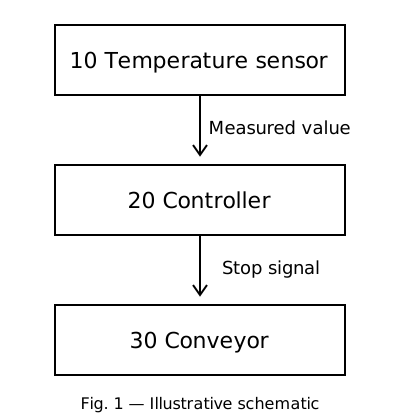
Drawing input and a matching block diagram
A fictitious temperature-monitored conveyor used for illustration. The figure was prepared to match the input and numerals; it is not an actual AI output and implies no quality guarantee.
What you provide
Temperature sensor 10 measures the temperature of conveyor 30. Controller 20 receives the measurement and stops conveyor 30 when it exceeds a set value.
How it is organized and checked
- Block diagram plan
- Temperature sensor 10 → controller 20 → conveyor 30. State whether each arrow carries measurement data or a control signal.
- Flowchart plan
- Read temperature → compare with the set value → stop conveying when exceeded. Confirm with the inventor what happens otherwise and when conveying restarts.
- Reference numeral check
- 10 = temperature sensor, 20 = controller, 30 = conveyor. Use the same numerals in the description, the brief description of the drawings and every figure.
Drawing samples
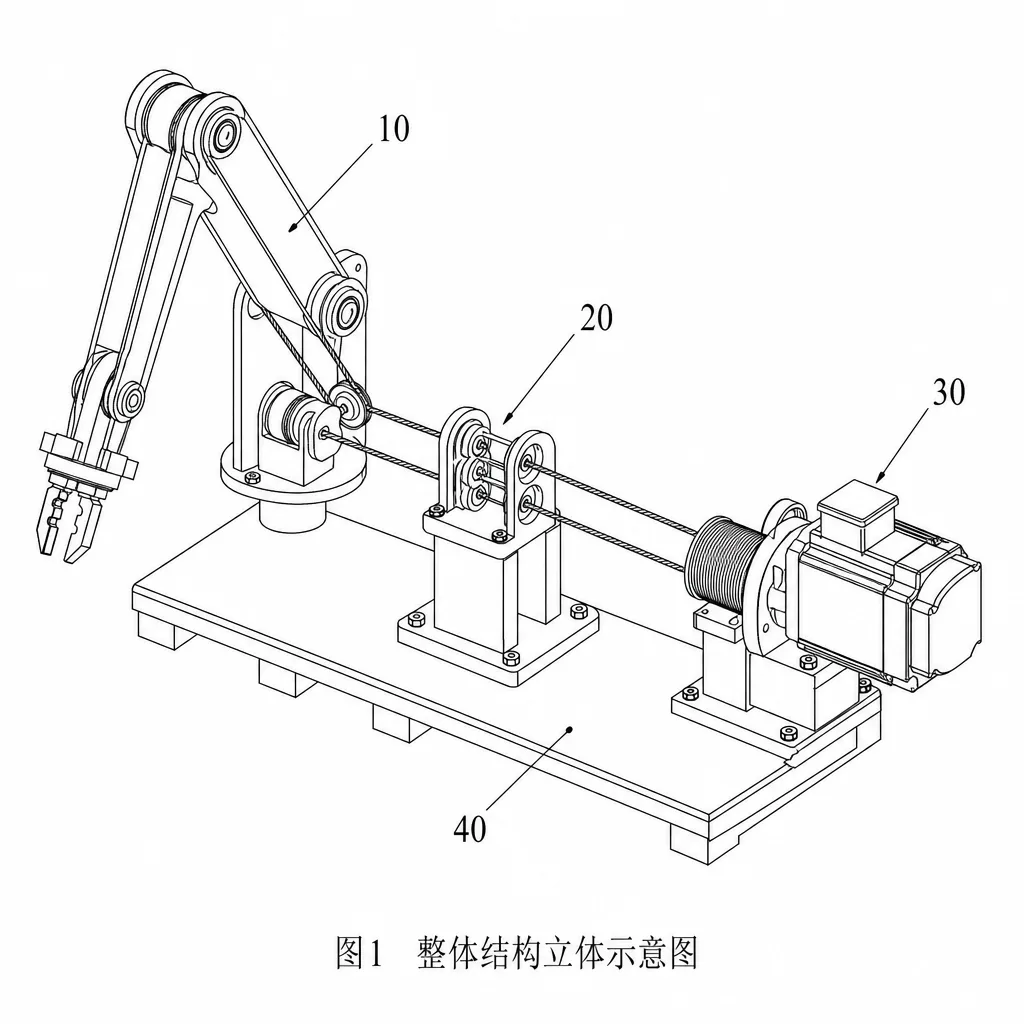
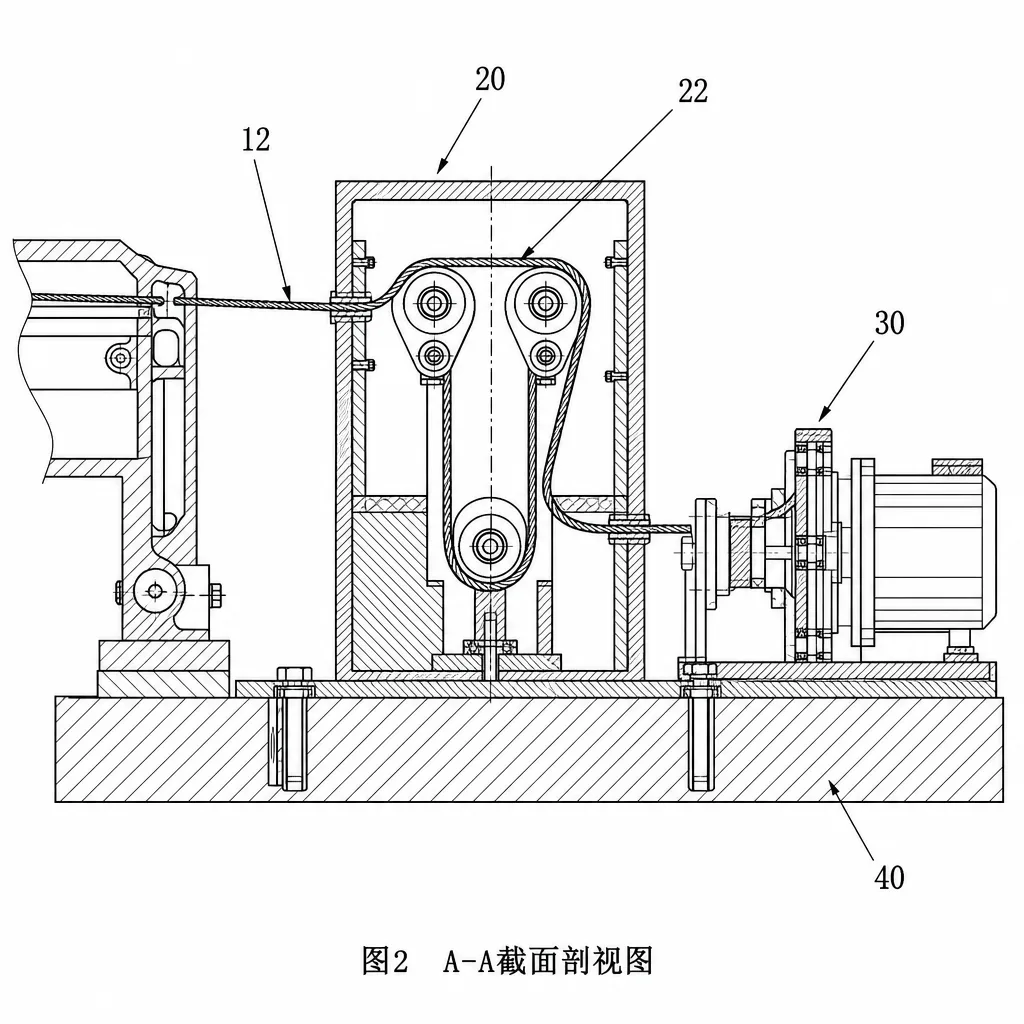
Internal test samples; no customer data. Open an image to check lines and numerals at full size.
How it works
01
Enter the technical description
Describe the components, connections and sequence of operation. For a new drawing project, confirm the target office.
02
Generate from the plan
Check figure types, descriptions and numerals before generating. Afterwards, compare lines, labels and connections with the input.
03
Review and export
After checking the unlock conditions, export to Word (DOCX), a ZIP of images or Markdown. Check legibility at final size.
Which kind of drawing tool is this?
Patent Task prepares draft figures that support a patent's technical description. It does not replace CAD design, permit drawings or manufacturing drawings with tolerances. Check shapes, dimensions and connections against your source material.
FAQ
Do AI-generated drawings meet filing requirements?
Not automatically. Check line connections, numerals, the brief description of the drawings and consistency with the text, and check the office's format rules separately. Samples on this page are not a quality guarantee.
Can I create drawings without a patent draft?
Yes. Start a standalone drawing project. When you open the drawing workspace from an existing draft, it keeps that draft's link and target office.
Which formats can I download?
DOCX, ZIP and Markdown. Exports are limited in preview, so check the unlock conditions on the project screen.
Learn more
Check what is included and start
Plans and purchase options are shown on the pricing page and in the workspace. Review the terms and how your data is handled before you begin.